 An official website of the United States government



The new SAP Portal has launched
The new SAP Portal can be accessed at sap.nsf.gov and was launched on 15 June 2026.
ResearchDataGov.org became read only on 26 May 2026.
Why did ResearchDataGov.org (RDG) transition to a new SAP Portal?
We transitioned to a new, modernized Standard Application Process (SAP) Portal to improve usability, enhance system performance, and provide integrated support features. The new platform is designed to further streamline the application process for users and support future innovation. This change reflects our commitment to providing a more efficient, reliable, and user-friendly system for both agency staff and the public.
How did the transition work?
The transition took place in phases to ensure a smooth and secure shift to the new platform. During this process, users received clear instructions and support for any required actions—such as account setup, application information migration, or updated login steps. Communication was ongoing throughout the transition, with detailed timelines and training materials available on the SAP Web page. We communicated details and instructions with users using their RDG email on file. Support teams will be ready to assist with troubleshooting and to address any questions that arise through fall 2026.
When did the transition take place?
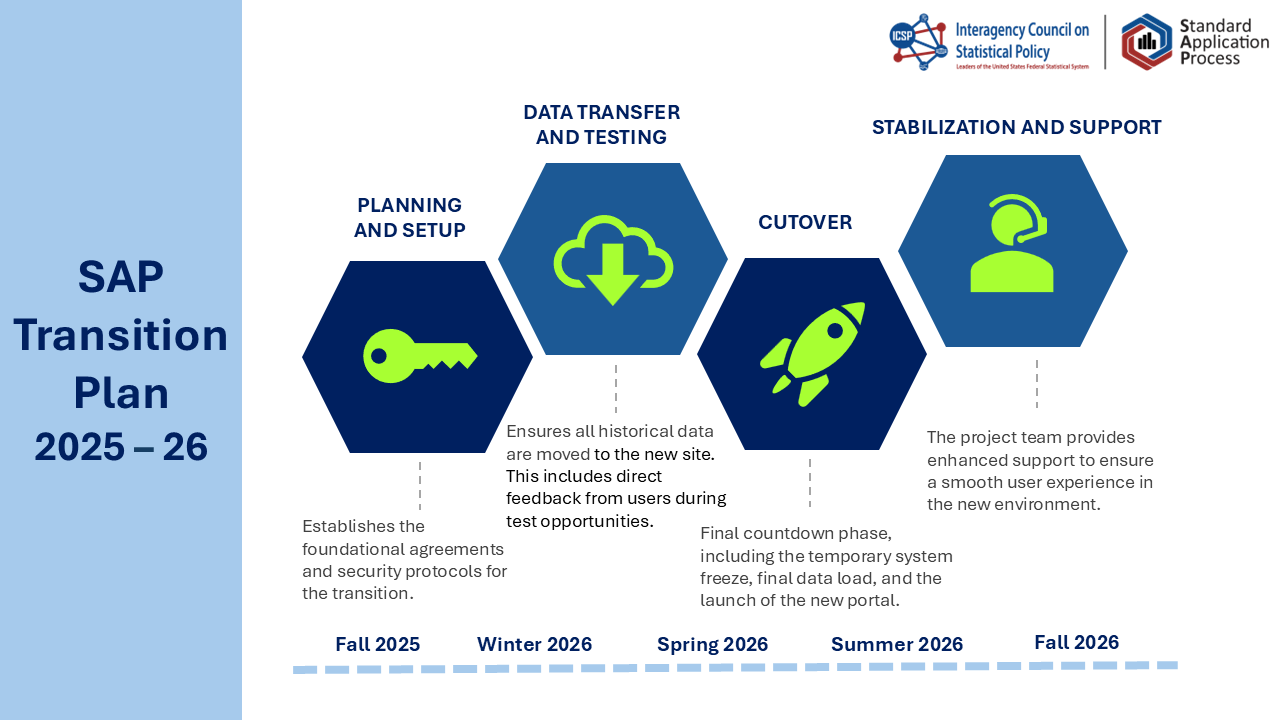
The technical transition occurred over several months, with key milestones communicated in advance. RDG was in a read-only state between 26 May 2026 and 15 June 2026. During the read-only state, users were able to browse the metadata catalog but were not able to start new applications or edit existing applications. Agency users were not able to edit metadata or render decisions on applications. The portal was transitioned on 15 June 2026. Users were notified well ahead of any important dates to ensure adequate preparation time and minimal disruption to normal operations. The figure below summarizes the portal transition timeline.
How do I access the new portal?
To access the new SAP Portal, open an Internet browser (such as Edge or Chrome) and enter sap.nsf.gov. From there, users can either browse the Data Catalog or log in to the portal. For a limited time, www.ResearchDataGov.org, the previous home of the SAP Portal, will redirect users to the new site. Detailed instructions to log in to the new SAP Portal are provided below.
Where are my draft and approved applications?
After logging in to the portal, users can select “My Applications” from the secondary navigation bar at the top of the page to view their applications.
NOTE: If you are an existing user, you will still be prompted to create a new account (for security reasons, passwords cannot be migrated from a legacy system). To retain your SAP user history, you must create an account with the same email address associated with your RDG account. Login instructions for existing users are provided below.
Where is the new Data Catalog?
The Data Catalog can be accessed at sap.nsf.gov/dataset. The URL and interface are new, but the metadata remain the same as they were at the time of the system freeze at the end of May.
Where can I find training and learning resources?
Training and learning resources are available within the SAP Portal. Specifically, users can visit the help page, which includes FAQs, user guides, and other helpful information.
I found a bug or have a question; whom do I contact?
Users who have questions, need guidance, or want to report a bug should email the SAP Help Desk at SAPSupport@mathematica-mpr.com.
How can I provide feedback on the new interface?
We welcome user feedback. Users can provide feedback at any time by emailing the SAP Help Desk at SAPSupport@mathematica-mpr.com.
How can I log in to the SAP Portal?
If you are an existing user, you will still be prompted to create a new account (for security reasons, passwords cannot be migrated from a legacy system). To retain your SAP user history, you must create an account with the same email address associated with your RDG account.
To create an account
- Navigate to the SAP Portal homepage at sap.nsf.gov.
- Click on My Account.
- Click Log in with SAP.
- On the next screen, click Create an account.
- Enter the email associated with your RDG account.
- Enter a new password.
- Follow the prompts to verify your email address.
- Follow the prompts to set up multi-factor authentication. Note that you must install an authenticator app on your mobile device. There are multiple multi-factor authentication apps available (e.g., Google Authenticator, Microsoft Authenticator, and Duo) that will work with the SAP Portal.
- Log in using your new password and multi-factor authentication.